Auto-offer: automatic offers and negotiation
Set up Auto-offer on your filters, understand purchase limits, opening discounts and target margins, and choose whether to buy automatically.
On this page
Auto-offer automatically sends an offer when an item matches your filter but its listing price is above your purchase limit. It can also negotiate seller counter-offers and, if you choose, attempt to buy when an acceptable price is available.
Auto-offer is available on Turbo and Business and is configured separately for each filter.
You can access Auto-offer by clicking this icon in the filter form:

How Auto-offer works with Autocop
- At or below your purchase limit: matching items remain eligible for a direct Autocop purchase.
- Above your purchase limit: matching items can receive an automatic offer instead of a direct purchase.
- Outside your filter’s criteria: Auto-offer does not make the item eligible. Your filter’s price range and other criteria still apply.
For example, you can search for items priced up to €50 while setting an Auto-offer purchase limit of €30. Matching items at €30 or less remain eligible for Autocop; matching items above €30 and up to €50 can be negotiated.
Set up Auto-offer
Auto-offer settings in the filter form. Enable Auto-offer to configure the negotiation options.
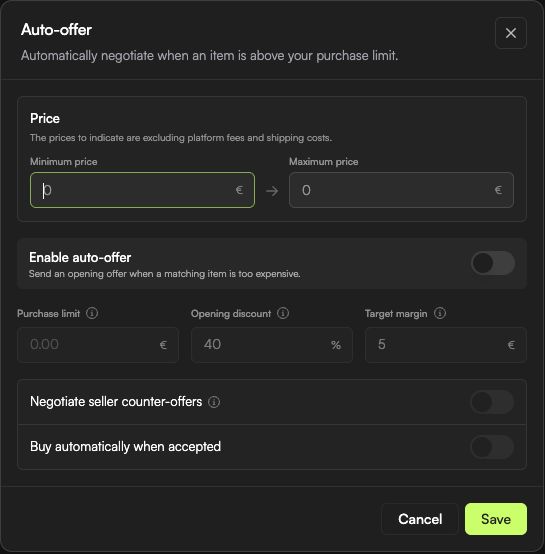
- Open Filters and create or edit a filter.
- Set its criteria and price range. To negotiate items above your purchase limit, the filter’s maximum price must allow those items to match.
- Open Auto-offer and enable it. The filter must also have Autocop enabled.
- Set your Purchase limit, Opening discount and Target margin.
- Choose whether to enable Negotiate seller counter-offers and Buy automatically when accepted.
- Save the Auto-offer settings, then save the filter.
Your Vinted account must be linked and usable. Global Autocop must be on for new Auto-offer negotiations to start. If the filter uses an assigned folder account group, the folder’s Autocop setting must also allow it. This differs from direct folder Autocop, which can operate independently of the global Autocop switch.
What each setting means
- Purchase limit: the highest item price you are willing to pay through this Auto-offer setup. Platform fees and shipping are additional; this is not a total checkout budget.
- Opening discount: the percentage taken off the listing price to calculate the first offer, from 0% to 40%. The target margin can raise that starting amount, and the purchase limit caps it.
- Target margin: how far below your purchase limit the opening offer may start. With a €30 limit and a €5 margin, the opening offer will not start below €25. This is a negotiation setting, not an estimate or guarantee of resale profit.
- Negotiate seller counter-offers: allows Souk to respond when the seller proposes a price above your purchase limit.
- Buy automatically when accepted: enables an automatic purchase attempt when your offer is accepted, or the seller offers an eligible price at or below your limit.
Example of a negotiation
Suppose an item is listed at €45, your purchase limit is €30, your opening discount is 40%, and your target margin is €5.
- The discounted listing price is €27. This is above the €25 starting floor, so the opening offer is €27.
- If the seller counters above €30 and counter-offer negotiation is enabled, Souk can offer €28.50, halfway between the previous offer and your limit.
- If the seller still counters above your limit, Souk can make a final offer of €30.
- Souk does not raise its automatic offers above your purchase limit. There are at most two automatic counter-offers after the opening offer.
If the opening offer already equals your limit, there is no room to raise it further.
Does accepting an offer automatically buy the item?
Only if you enabled Buy automatically when accepted for the negotiation. If it is off, Auto-offer does not automatically purchase the negotiated item; you can review the conversation and decide what to do.
This option controls purchases resulting from the negotiation. Turning it off does not disable direct Autocop for matching items whose listing price is already at or below your purchase limit.
An accepted offer is not a completed purchase. The item must still be available, and payment or account checks can prevent completion. A bank confirmation may still require your action.
Why was no offer sent?
- Check that the item matches your filter’s criteria and price range, and that its price is above the Auto-offer purchase limit.
- Check that Auto-offer and Autocop are enabled on the filter, global Autocop is on, and any assigned folder settings allow Autocop.
- Check that an eligible Vinted account is available and its session is valid.
- Vinted offer limits or restrictions can prevent an offer from being sent. The seller may also decline or leave an offer unanswered.
Auto-offer does not guarantee a reply, an accepted offer or a successful purchase.