Getting started: make your first purchase with Souk
Create a filter, prepare a Vinted account and complete your first Autobuy purchase with Souk.
On this page
Follow this checklist to go from a new Souk account to your first purchase. Start with Autobuy, which lets you review an item and choose to buy it. Add Autocop later if you want eligible matches to trigger purchases automatically.
1. Create your first filter


Open Filters, select Create a filter, and add the criteria that describe the items you want. Category and brand are optional. If the search is too broad to save, narrow it with a more specific category or other criteria.
See How to create a good filter for all available criteria.
2. Check matching items in the feed
New listings that match an enabled filter appear in the Feed. Open an item to review its photos, price, seller information and available purchase actions.
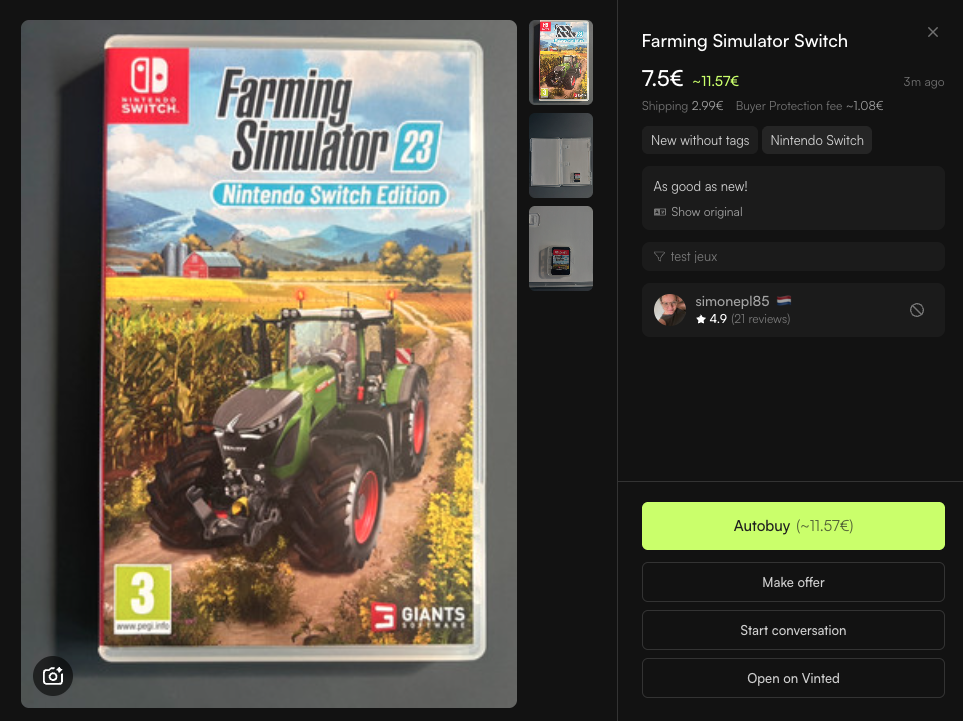
If no item appears immediately, allow time for new matching listings: about an hour for popular items and a few hours for rare items.
3. Link a Vinted account
Open Accounts or Settings → Vinted linking and link the account you want to use for purchases. You can link multiple accounts, but the number used simultaneously depends on your plan and purchase settings.
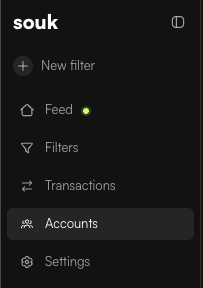

See Linking a Vinted account to purchase.
4. Prepare payment and delivery
Before buying, check the selected Vinted account has:
- a valid session;
- a saved payment method;
- a complete shipping address;
- a delivery contact number when required;
- a compatible pickup point or home-delivery method.
5. Make your first Autobuy purchase
Open an eligible item in the Souk feed and choose Buy now. Review the account and delivery details shown, then start the purchase. Complete 3D Secure if your bank requests it.
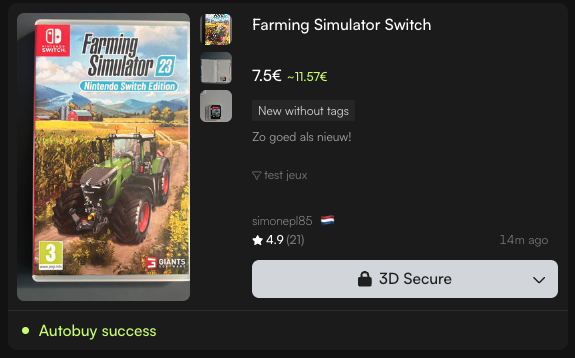
Track the attempt in Transactions. A purchase is complete only when an order has been created successfully.

6. Add automation when you are ready
- Autocop purchases eligible filter matches automatically.
- Auto-offer can negotiate eligible items priced above your purchase limit.
- Multicop can attempt the same purchase with several accounts at once on supported plans.
Review Autocop – Automatic Purchases and Auto-offer: automatic offers and negotiation before enabling automation.