Purchase settings: Autocop, Multicop, account switcher and folder groups
Understand unlimited linked accounts, Turbo and Business simultaneous limits, Autocop, Multicop, switcher modes, and folder account groups.
On this page
- Linked accounts and simultaneous purchase limits
- What each setting does
- Automatic account switcher modes
- Autobuy: fixed selection or follow switcher
- Can Autocop and Autobuy use different account counts in Safe mode?
- Set purchase settings for a filter folder
- Global settings versus folder settings
- Subfolders
- If the same item matches several Autocop filters
- Which accounts can be used?
- What if an assigned group has no usable accounts?
- Common questions
- Related guides
Souk lets you link Vinted accounts, choose which accounts can purchase, and rotate them automatically. This article explains how Autocop, Multicop, the automatic account switcher, and filter-folder purchase settings work together. These advanced purchase settings are available on Turbo and Business.
Linked accounts and simultaneous purchase limits
You can link an unlimited number of Vinted accounts to your Souk account. Linking an account does not mean it will be used for every purchase.
- Turbo: up to 10 accounts used simultaneously for a purchase.
- Business: up to 20 accounts used simultaneously for a purchase.
These are the standard plan limits. If your Souk account has a specifically configured higher allowance, that allowance applies. Your purchase settings show your available limit.
The simultaneous limit is different from the number of linked accounts or accounts in a group. For example, a Turbo user can link 30 accounts and use up to 10 for one purchase, leaving other eligible accounts available for rotation. Creating several groups or folders does not multiply the plan limit for the same item purchase.
What each setting does
- Autobuy: starts a purchase when you click to buy.
- Autocop: starts a purchase automatically when an item matches a filter configured for Autocop and the applicable purchase settings allow it.
- Multicop: allows Souk to attempt the same purchase with several Vinted accounts in parallel, within your plan limit.
- Automatic account switcher: controls how Souk selects or replaces purchase accounts over time.
- Account group: a collection of linked Vinted accounts that you can assign to a filter folder.
These settings are separate. Enabling the switcher does not enable Autocop or Multicop. With Multicop off, a purchase uses one account at a time.
Automatic account switcher modes
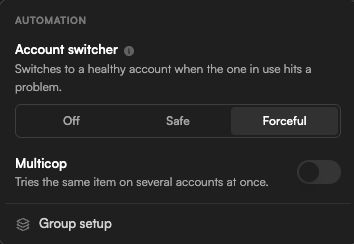
In Accounts, open Automation settings to find the account switcher and Multicop controls. The selection shown below is an example.
-
Off: You manage account selection manually. Souk uses the configured account or account selections and does not automatically recruit replacements.
-
Safe: Souk rotates accounts proactively as purchase attempts start, favouring eligible accounts that have not been used recently. With Multicop enabled, choose the number of simultaneous accounts and let Souk manage the selection.
Rotation affects subsequent attempts. It does not transfer a purchase already in progress to another account. Additional eligible accounts provide room to rotate; if all eligible accounts are already in use, there is no spare account to rotate to.
-
Forceful: Souk keeps your configured selection while those accounts remain usable. If an account becomes unusable, Souk can replace it with an eligible spare. This mode favours a stable selection instead of rotating after every attempt.
Safe and Forceful require at least two linked accounts to be selectable. For folder settings, the assigned group must contain at least two accounts. Actual replacement requires an eligible spare within the applicable account pool.
Autobuy: fixed selection or follow switcher
When Multicop is on and the switcher is Safe or Forceful, you can choose the Autobuy behavior:
- Fixed selection: Autobuy uses only the accounts you select manually. The switcher does not replace that selection. Accounts reserved for fixed Autobuy are excluded from automatic spare-account selection for Autocop/Multicop.
- Follow switcher: Autobuy follows Safe or Forceful too. Safe manages the selection automatically; Forceful keeps the selected Autobuy accounts until replacements are needed.
With Multicop on, Off and Forceful let you choose the Autocop and Autobuy account selections separately. Safe uses a simultaneous-account target for the automatically managed selection. With Multicop off, the applicable single purchase account and switcher mode are used.
Can Autocop and Autobuy use different account counts in Safe mode?
Not when both follow Safe in the same settings scope. Autocop and Autobuy with Follow switcher share the same simultaneous-account target. A target of 2 allows both to use two accounts; a target of 1 limits both to one. This applies to global settings and to each folder’s own settings.
For example, with two linked accounts, you cannot configure Autocop to use both while Autobuy automatically Safe-rotates only one at a time in that same scope. Choosing one fixed Autobuy account stops automatic Autobuy rotation; it does not create an independent Safe target.
You can separate the behavior by context: set global Multicop to Safe with a target of 1 and Autobuy to Follow switcher; then give an Autocop folder a group containing both accounts, enable folder Autocop and Multicop, choose Off, and select both accounts for Autocop. Autobuy only uses the global one-account behavior when the purchase has no folder context. A purchase made in the configured folder follows that folder’s settings instead. This is not independent Autocop/Autobuy Safe targets within one folder.
Set purchase settings for a filter folder
Turbo and Business users can give a filter folder its own account group and purchase settings.
- Open Accounts, create an account group, and add the Vinted accounts you want that folder to use.
- Open your filters/alerts, open the folder menu, and choose Purchase settings.
- Under Account group, select the group. Choose Use global settings instead if the folder should use your normal account-wide settings.
- For an assigned group, configure Autocop, Multicop, and Switcher. Depending on the mode, choose a primary account, the Autocop and Autobuy account selections, or the Simultaneous accounts target. Choose the Autobuy behavior when that option is shown.
- Save your settings. Make sure the individual filters that should buy automatically also have Autocop configured.
Global settings versus folder settings
- Use global settings: the folder uses your current global purchase-account selection and Autocop settings.
- Assigned account group: the folder uses its own purchase settings and accounts from that group. Replacements also come from that group.
- Folder Autocop: this replaces the global Autocop on/off setting for that folder. Turning global Autocop off does not disable a folder that has its own group and Autocop enabled. To stop that folder buying automatically, turn off its folder Autocop setting or the relevant filters.
- Individual filters still matter: enabling folder Autocop does not turn notification-only filters into automatic-purchase filters. Other purchase eligibility checks still apply.
Folder settings also apply to Autobuy when you buy an item in that folder/filter context. A manual purchase without a folder context uses the global settings.
Subfolders
Purchase settings apply to the folder itself, not automatically to its descendants. When creating a subfolder, you can choose to copy its immediate parent’s purchase settings or use global settings. Copying is a one-time copy: later parent changes do not update the child. Moving a folder under another folder does not change its purchase settings.
If the same item matches several Autocop filters
If all the eligible matching filters use assigned groups, Souk combines their eligible account candidates, removes duplicate accounts, and caps the purchase at your plan’s simultaneous-account limit. If an eligible matching filter uses global settings, the global purchase-account selection is used instead. To keep a category of purchases restricted to a group, check that overlapping Autocop filters are not still using global settings.
Which accounts can be used?
An account needs to be linked, available for purchasing, and have a usable Vinted session. Paused, blocked, banned, or otherwise unavailable accounts cannot be automatically selected. Complete the account’s purchase setup, including the required address and payment details. Accounts must also be compatible with the item’s Vinted market.
The number actually used can be lower than your selected target if too few eligible, compatible accounts are available. Under global rotation, Souk prefers a replacement from the same Vinted market and considers how recently accounts were used.
What if an assigned group has no usable accounts?
A purchase restricted to that folder’s group is skipped when it has no usable purchase accounts. Souk does not silently fall back to accounts outside the assigned group, and it can notify you that the group needs attention. Check account sessions, availability, group membership, and your selected accounts. The overlapping-filter rule above still applies when another eligible filter authorizes the same item.
Common questions
-
Can I link more than 10 accounts on Turbo or 20 on Business?
Yes. Linked accounts are unlimited. The 10/20 limits apply to accounts used simultaneously for a purchase.
-
Does an account group increase my simultaneous limit?
No. Groups organize and restrict account selection. They do not increase your plan allowance.
-
Why is the switcher not rotating?
Check that Safe or Forceful is enabled, that eligible spare accounts exist in the applicable pool or assigned group, and that they are not paused or reserved for fixed Autobuy. Forceful only replaces accounts when necessary, so no rotation while your selection remains usable is expected.
-
Does rotation guarantee a purchase or prevent Vinted restrictions?
No. Competition, account availability, payment checks, and Vinted restrictions can still prevent a purchase.