Keywords in filters
Use keyword groups, exclusions and additional text criteria to control which items appear in your feed and qualify for Autocop.
On this page
- How it works
- Example
- Important rules
- 1. Keywords in the same group are alternatives
- 2. Different groups narrow the search
- 3. Excluded keywords always filter items out
- 4. Matching is case-insensitive and accent-insensitive
- Additional text criteria
- Best practices
- Mobile app compatibility
- If a filter was created or updated with keyword groups on web
- If a filter was created on mobile
- Common questions
Keyword groups help make filters more precise.
With the new keyword system:
- keywords inside the same group use OR logic
- different groups use AND logic
- excluded keywords always remove matching items
- matching is case-insensitive
Open Keywords in the filter form to add required groups, excluded keywords and additional text criteria.
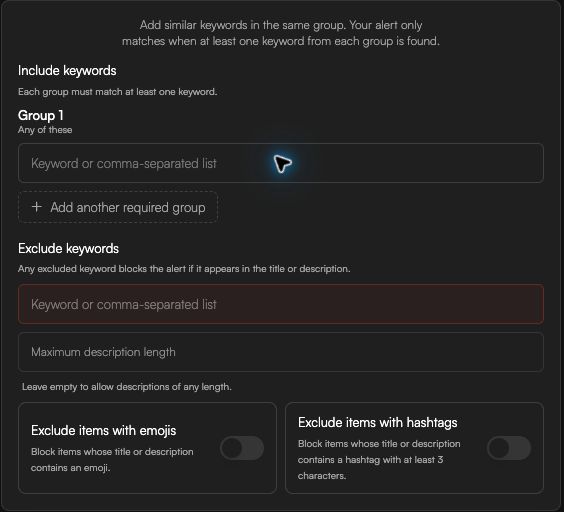
How it works
An item must match:
- at least one keyword from each group
- none of the excluded keywords
Example
If a filter has:
- Group 1:
nike,adidas - Group 2:
hoodie,sweatshirt - Excluded keywords:
kids,fake
Then a listing can match if it contains:
nike hoodieadidas sweatshirt
But it will not match if it contains:
kidsfake
So this setup means:
- (
nikeORadidas) - AND (
hoodieORsweatshirt) - AND NOT (
kids,fake)
Important rules
1. Keywords in the same group are alternatives
Use one group for words that mean almost the same thing, or for different ways sellers might describe the same item.
Example:
- Group:
hoodie,sweatshirt,pullover
The item only needs one of them.
2. Different groups narrow the search
Use multiple groups when you want to combine conditions.
Example:
- Group 1:
nike,adidas - Group 2:
vintage - Group 3:
jacket,coat
The item must match:
- one brand from Group 1
- and
vintage - and one clothing type from Group 3
3. Excluded keywords always filter items out
Excluded keywords are applied to the whole filter.
If a listing contains any excluded keyword, it will not match, even if it matches all your groups.
Example excluded keywords:
kidsdamagedreplica
4. Matching is case-insensitive and accent-insensitive
Uppercase, lowercase, and accents do not matter.
For example:
Nike, NIKE, nikePokémon, pokemon
These are treated the same.
Additional text criteria
When creating or editing a filter in the web app, open the Keywords section. Below the excluded keywords, you can also set these optional criteria:
- Maximum description length: enter the maximum number of characters allowed in the item’s description. Descriptions longer than this are excluded. For example, a limit of 500 allows descriptions of 500 characters or fewer. This limit applies to the description only, not the title. Leave the field empty to allow descriptions of any length.
- Exclude items with emojis: turn this on to exclude items when an emoji is detected in their title or description.
- Exclude items with hashtags: turn this on to exclude items whose title or description contains a hashtag with at least three characters after the #, such as
#nikeor#vintage.
These criteria apply in addition to your keyword groups, excluded keywords and other filter criteria. An item can match all your keyword groups and still be excluded by one of these settings. Save the filter after making changes.
Best practices
- Put synonyms or close alternatives in the same group
- Put separate requirements in different groups
- Use excluded keywords to remove common false positives
- Start simple, then add more groups only if needed
Mobile app compatibility
Use Souk’s web editor to edit keyword groups, including from a mobile browser or the installed PWA. The native app’s older keyword editor is different from mobile web/PWA; the compatibility rules below describe that older editor.
If a filter was created or updated with keyword groups on web
In the older native-app editor:
- the filter can still be opened
- non-keyword settings can still be edited
- keyword groups and excluded keywords cannot be edited
- if keyword fields are changed from mobile, those changes are ignored
This protects the advanced keyword setup created on web.
If a filter was created on mobile
Filters created with the older native-app keyword editor use the legacy keyword format and continue to work. Filters created in mobile web/PWA use the web editor.
They can also be opened later on web.
Common questions
-
Why am I not getting results?
The filter may be too restrictive.
Remember that every group must match. If you add too many groups, very few items may qualify.
-
Why am I getting too many results?
Try:
- splitting broad keywords into better groups
- adding another required group
- adding excluded keywords for common unwanted matches
-
Can I manage keyword groups from mobile?
Yes, through Souk in your mobile browser or PWA. Use the web editor for keyword groups; the older native-app editor does not support them.
The older native-app editor can still edit non-keyword filter settings without changing a web-created keyword-group setup.